

This article covers the following platforms
 MSFS 2024
 MSFS 2020
 ATS
ATS FSX
FSX Prepar3D
Follow these steps to add a custom script widget to your wheel and start coding.
-
Create the widget: Find the custom script widget in the left column and drag it onto your wheel.
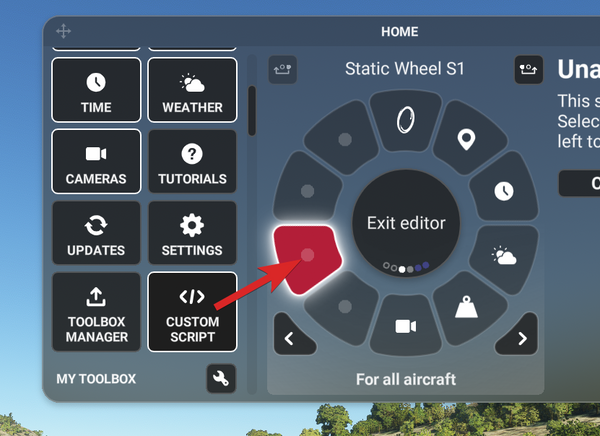
-
Open the script editor: Select your widget on the wheel and click the edit button in the right column.
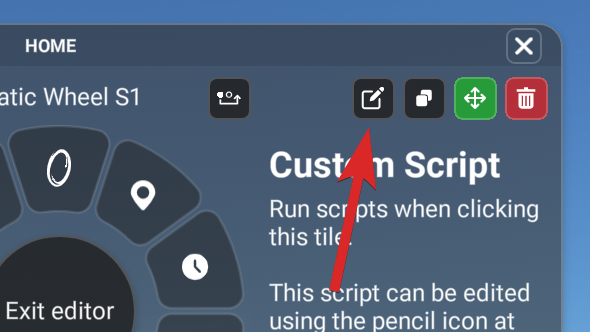
-
Start from a template: Choose an existing template or start from a blank slate. This example uses the template called Door 1.
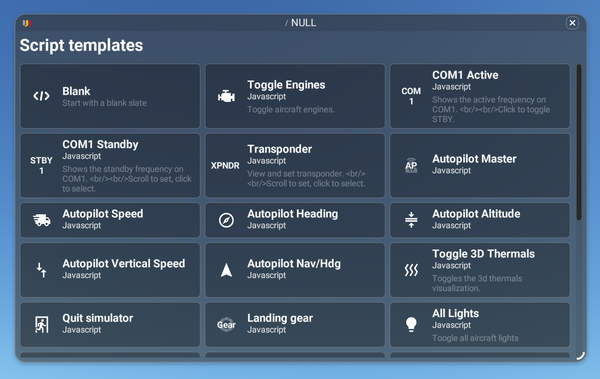
-
Configure your script settings: These are the basic settings for your widget.
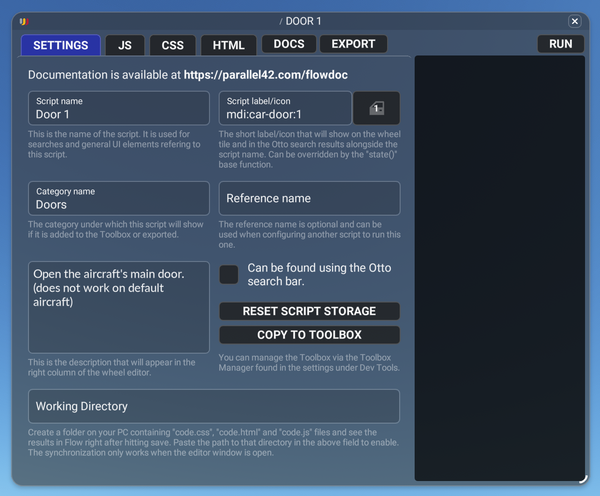
- Script name: The script’s name. Used in searches and anywhere the UI refers to this script.
- Script label/icon: The short label or icon shown on the wheel tile and in Otto search results next to the script name. The “state()” base function can override it.
- Category name: The category this script appears under when added to the Toolbox or exported.
- Reference name: Optional. Use it when configuring another script to run this one.
- Description: Shown in the right column of the wheel editor.
- Can be found using Otto search bar: Lets Otto find this widget. Otto searches by script name.
- Reset script storage: Clears any data the widget has saved.
- Copy to Toolbox: Copies your widget to the Toolbox so you can add it to your wheel later without exporting it to your Community folder. Toolbox widgets show in the wheel editor sidebar.
- Working Directory: Syncs your code from a folder on your PC. Create a folder containing “code.css”, “code.html” and “code.js” files, then paste the folder’s path in the text field. Your changes appear in Flow right after you save. Sync only works while the editor window is open.
-
Start coding:
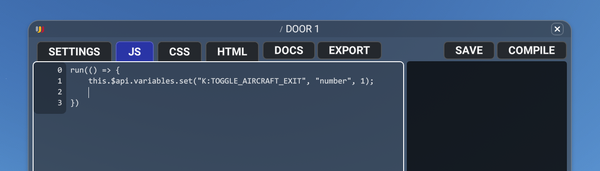
- Base functions: Listed here. Functions that run code at specific times or when an event triggers.
- APIs: Listed here. Code snippets you can use inside (or outside) base functions.
- Save: Saves the widget without running it. If a lot of the code changed, Flow asks you to confirm. This prevents errors during copy-paste.
- Compile: Saves and compiles the widget.
- Run: Runs the code inside the run() function, the same as clicking the tile in the Wheel.