

This article covers the following platforms
 MSFS 2024
 MSFS 2020
 ATS
 FSX
 Prepar3D
The Home page is your camera library. It separates cameras into Internal, External, and World modes.
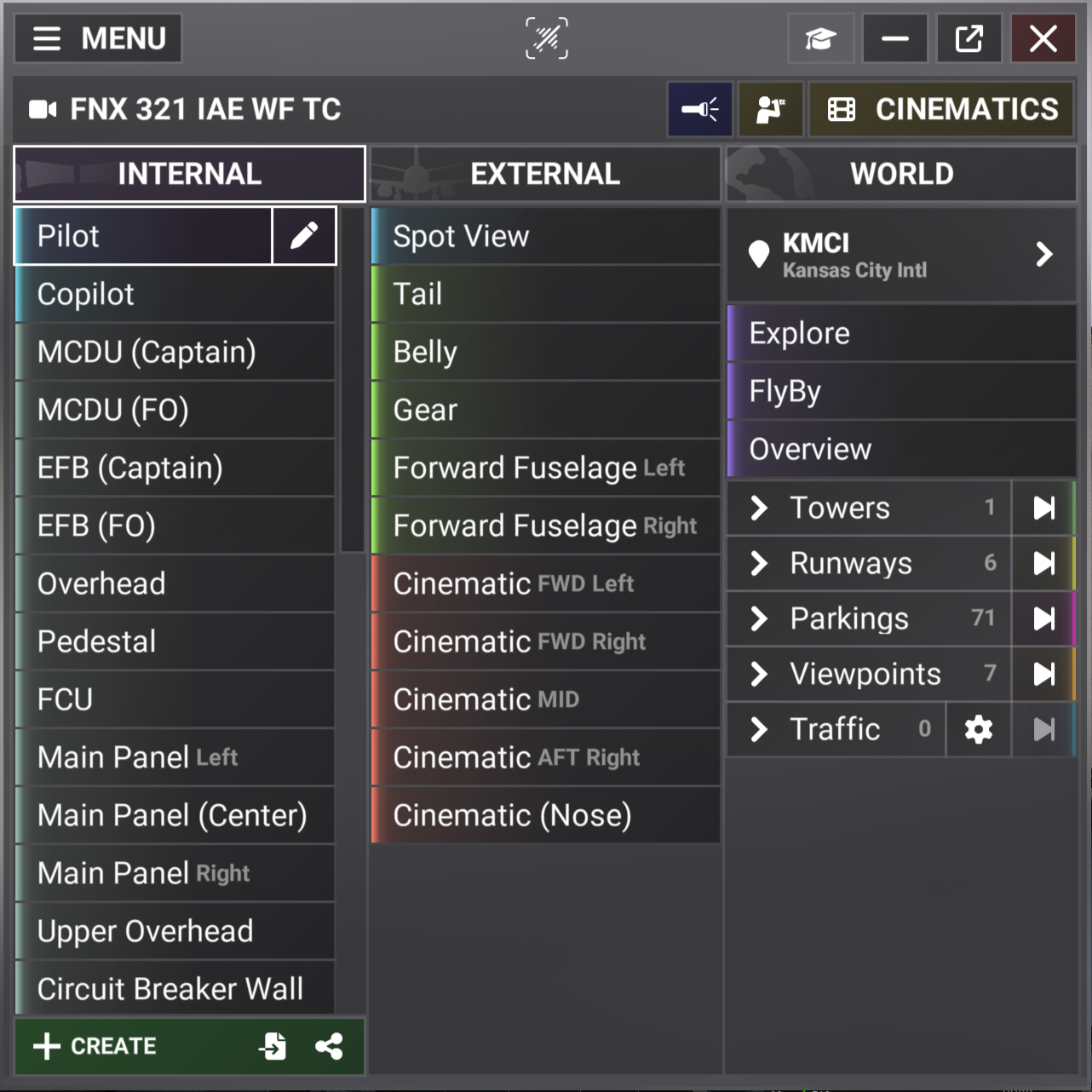
Understand the three camera modes
| Camera mode | Purpose |
|---|---|
| Internal | Shows cockpit, cabin, passenger, instrument, and other onboard views. |
| External | Shows views attached to the aircraft or views that follow the aircraft. |
| World | Shows cameras at positions in the simulator world. These cameras are not attached to your aircraft. |
The selected mode has a bright border. The selected view also has a bright edge and an action button.
Select a view
- Select Internal, External, or World at the top of its column.
- Select the name of the view that you want.
ChasePlane changes to that camera mode and loads the selected view.
Read Internal and External view lists
Internal and External lists can contain individual views and collapsed groups.
- Select a group row to show or hide its views.
- The number on a group row shows how many views it contains.
- The colored edge identifies the theme of the assigned group.
- A shortcut appears on the row when that view has a saved Control Assignment.
- Select the action button on a view row to open its editor.
The bottom action bar changes with the selected camera mode:
| Action | Internal | External | World |
|---|---|---|---|
| Create | Available | Available | Available |
| Import | Available | Available | Not shown |
| Community | Available | Available | Not shown |
Read the World column
The World column can show fixed views, generated views, airport locations, and nearby traffic.
| Area | What it contains |
|---|---|
| Airport selector | The active airport and a list of nearby airports. |
| Explore | A World camera placed near your aircraft. |
| FlyBy | A generated camera that shows the aircraft passing the camera. |
| Overview | A generated overhead view of the active airport. |
| Towers | Available airport tower cameras and saved tower views. |
| Runways | Runway ends and saved runway views. |
| Parkings | Parking positions and saved parking views. |
| Viewpoints | Airport viewing locations and saved spotting views. |
| Traffic | Nearby aircraft that match your traffic filters. |
Some World areas require airport or traffic data. In the Traffic area, a count of zero means that no matching aircraft is available.
If the camera library is not ready
Wait while ChasePlane loads the flight, aircraft, groups, and views. A transfer symbol appears during this normal wait.
If loading continues, the panel shows the parts that are still pending. Use these labels when you contact Parallel 42 Support.
Some aircraft do not give ChasePlane a cockpit eye position. For these aircraft, ChasePlane loads its outside views and a basic cockpit view after about 5 seconds.
Do not create, import, or edit views until the camera library appears.