

This article covers the following platforms
 MSFS 2024
 MSFS 2020
 ATS
ATS FSX
FSX Prepar3D
Convert a legacy (encrypted) MSFS install to a modern (unencrypted) one from the Xbox App.
- Open the Xbox App.
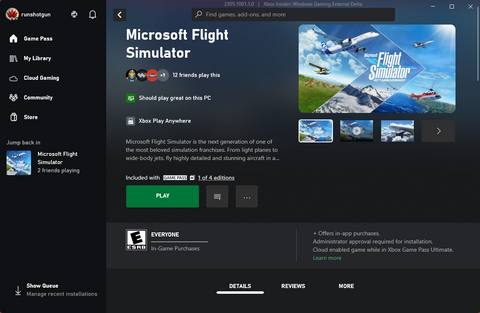
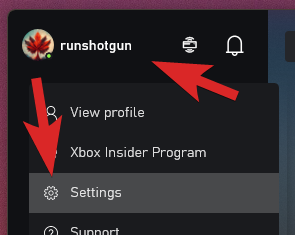
- Go to your Settings (via your profile picture).
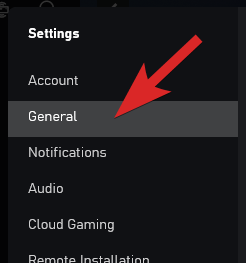
- Go to General.
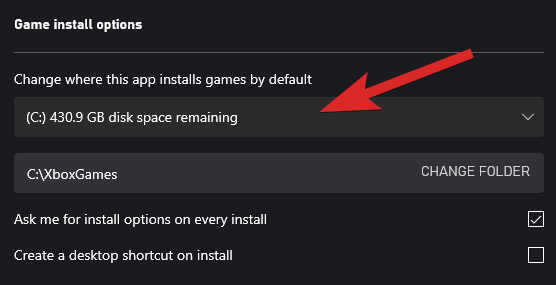
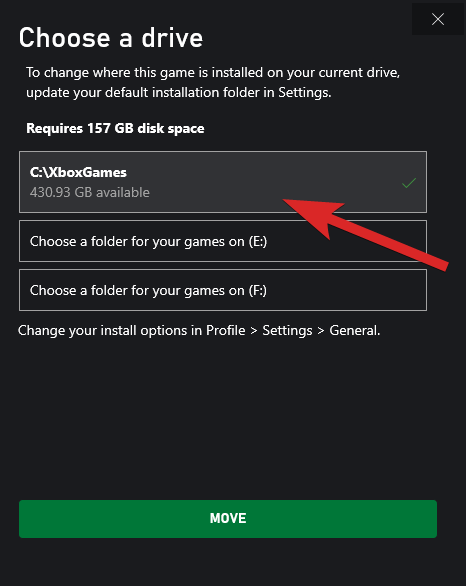
- Make sure Game install options are configured to receive the new simulator files. 157Gb of available disk space is required for the conversion to happen, but only 2Gb will be used when it completes.
- Close Settings.
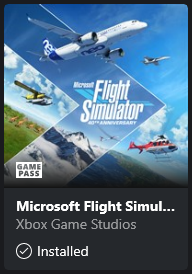
- Find and open the MSFS product page from “My Library”.
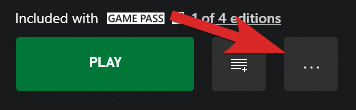
- Click the 3 dots next to the green Play button.
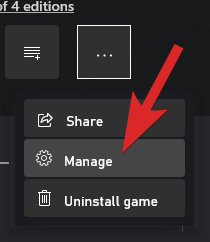
- Click on “Manage”.
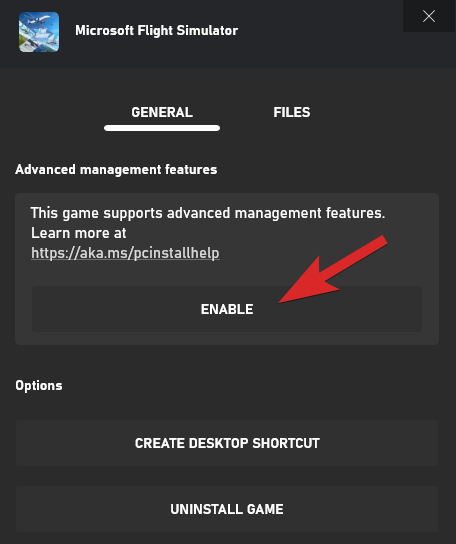
- Under “General”, find the section called “Advanced management features”.
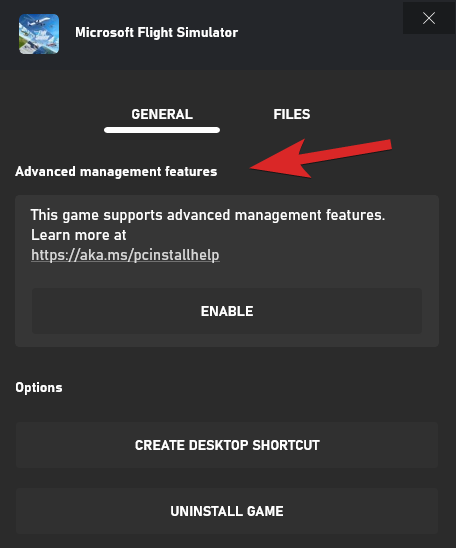
- Click on “Enable”.
- Choose the new location for your simulation files.
- Click “Move”.
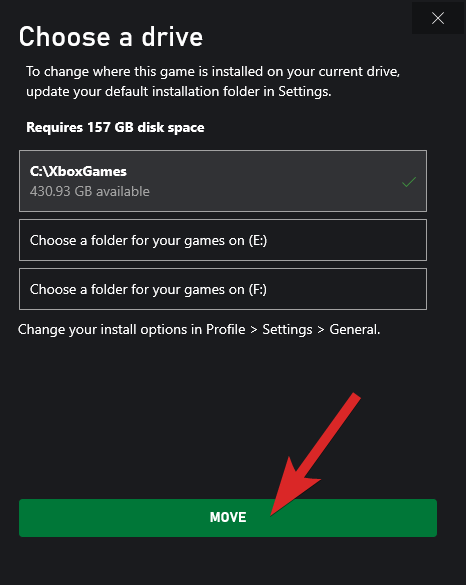
Once the move completes, your MSFS install is unencrypted and ready for Stripr.