
This article covers the following platforms
 MSFS 2024
 MSFS 2020
 ATS
ATS FSX
FSX Prepar3D
Stripr requires a “modern” MS Store installation of MSFS. If you installed MSFS a long time ago, your sim might be installed the old (legacy) way. This article does not apply to the Steam version of MSFS.
Legacy vs. modern installs
All newer MS Store purchases place core game files (including FlightSimulator.exe) outside of a previously encrypted ecosystem. We call these “modern” installs. This change came with the introduction of the Xbox app.
- Legacy (encrypted) install: the game files are locked away. You can convert to a modern install — Microsoft itself encourages this transition, as it’s the new norm.
- Modern (unencrypted) install: you have access to your FlightSimulator executable and the files around it. Your install is compatible with Stripr.
If you are uncomfortable converting your install, do not purchase Stripr at this time.
Check whether your install is legacy or modern
-
Open the Xbox App on Windows.
-
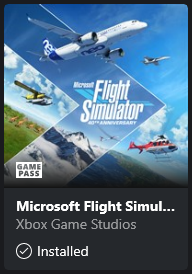
Find and open the MSFS product page from “My Library”.
-
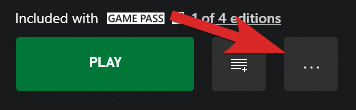
Click the 3 dots next to the green Play button.
-
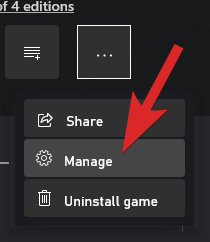
Click on “Manage”.
-
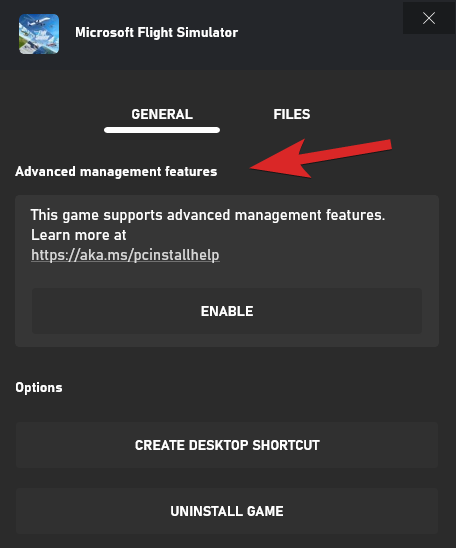
Under “General”, look for a section called “Advanced management features”.
- If you DO see it, you have a legacy (encrypted) install.
- If you DON’T see it, you have a modern (unencrypted) install.