

This article covers the following platforms
 MSFS 2024
 MSFS 2020
 ATS
 FSX
 Prepar3D
ChasePlane runs in an in-simulator panel. The panel gives you camera controls without leaving your flight.
Open ChasePlane
- Load a flight in Microsoft Flight Simulator 2024.
- Open the simulator toolbar.
- Select ChasePlane.
The ChasePlane Home page opens. During flight loading, ChasePlane can show a wait message instead of the camera library.
ChasePlane becomes active after the flight and its camera system finish loading.
Return to a supported flight camera
ChasePlane can show an inactive message when the simulator camera context is unsupported.
| Message | What to do |
|---|---|
| Waiting for your flight | Wait. ChasePlane becomes active after the flight finishes loading. |
| Inactive in Avatar mode | Enter the aircraft. |
| Photo mode is active | Use the simulator’s Photo mode controls. ChasePlane becomes active again when you exit Photo mode. |
| ChasePlane is inactive | Return to a supported flight camera. |
These messages do not mean that ChasePlane is off.
Understand the header
The header stays at the top of the attached panel.
| Control | What it does |
|---|---|
| Menu | Opens or closes the navigation menu. |
| Home | Returns to the Home page. It appears when another main page is open. |
| ChasePlane logo | Turns the ChasePlane camera system on or off. Press and hold the logo for at least half a second. |
| Tutorial icon | Opens the tutorial for the current page when one is available. |
| Minimize icon | Reduces the panel to the compact camera bar. |
| Separate-window icon | Moves the panel to a separate window when MSFS permits this action. |
| Close icon | Closes the panel. It does not turn the ChasePlane camera system off. |
Expand the minimized panel
Select the ChasePlane logo on the left side of the compact camera bar.
The full panel opens again. The compact bar also gives quick access to camera modes, views, and Cinematics Mode.
Use the navigation menu
Select Menu to open the main navigation.
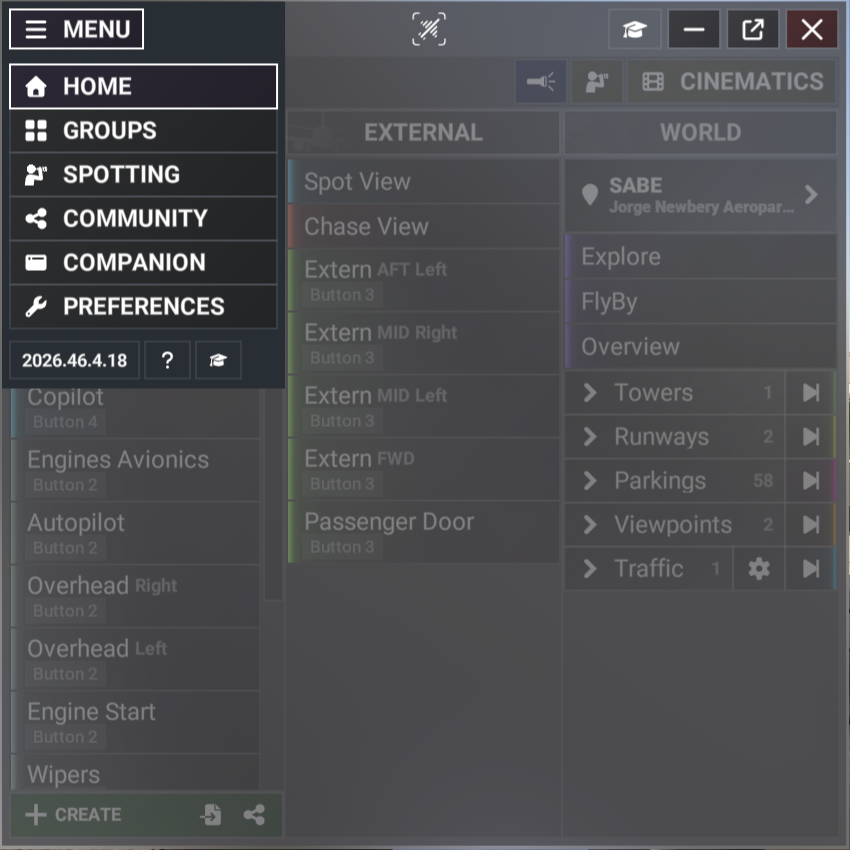
| Menu item | Purpose |
|---|---|
| Home | Select and manage camera views. |
| Groups | Organize views and set their shared camera behavior. |
| Spotting | Find airport locations and follow nearby aircraft. |
| Community | Find shared views and groups. Manage your shared content. |
| Companion | Opens the ChasePlane Companion interface in a browser. This item is unavailable when its server is not ready. |
| Preferences | Configure controls, interface behavior, units, backups, and troubleshooting options. |
The bottom row contains three more actions:
- Select the build number to open Release Notes.
- Select the question-mark icon to open Parallel 42 Support.
- Select the tutorial icon to start the built-in tutorial.
Select outside the menu to close it without changing pages.
Turn ChasePlane on again
When ChasePlane is off, the Home page shows Re-enable ChasePlane.
MSFS uses its default camera system while ChasePlane is off.
Select Re-enable ChasePlane. You can also press and hold the ChasePlane logo.
The camera library becomes available when the camera system and flight state are ready.