

This article covers the following platforms
 MSFS 2024
 MSFS 2020
 ATS
ATS FSX
FSX Prepar3D
Every version of Flow installs into the Community folder — the folder where MSFS loads add-ons from.
- Quit the simulator.
- Run the .exe installer you downloaded from the //42 Store.
- Select the simulator you want to install Flow into and finish the install.
- Launch the simulator.
- Load into any airport. Flow starts the onboarding tutorial on its own.
-
Unzip the .zip you downloaded from our store.
-
Quit the simulator.
-
Confirm the extracted folder matches one of these three names:
p42-util-flow / p42-util-flow-essentials / p42-util-flow-pro -
Move that folder into the Community folder.
- MSFS 2020 Microsoft Store version
%LOCALAPPDATA%\Packages\Microsoft.FlightSimulator_8wekyb3d8bbwe\LocalCache\Packages\Community - MSFS 2020 Steam version
%APPDATA%\Microsoft Flight Simulator\Packages\Community
If you installed the simulator to a custom location, look for the Community folder there. For example, if you installed to
D:\Games\MSFS, the Community folder isD:\Games\MSFS\Community - MSFS 2020 Microsoft Store version
-
Launch the simulator.
-
Load into any airport. Flow starts the onboarding tutorial on its own.
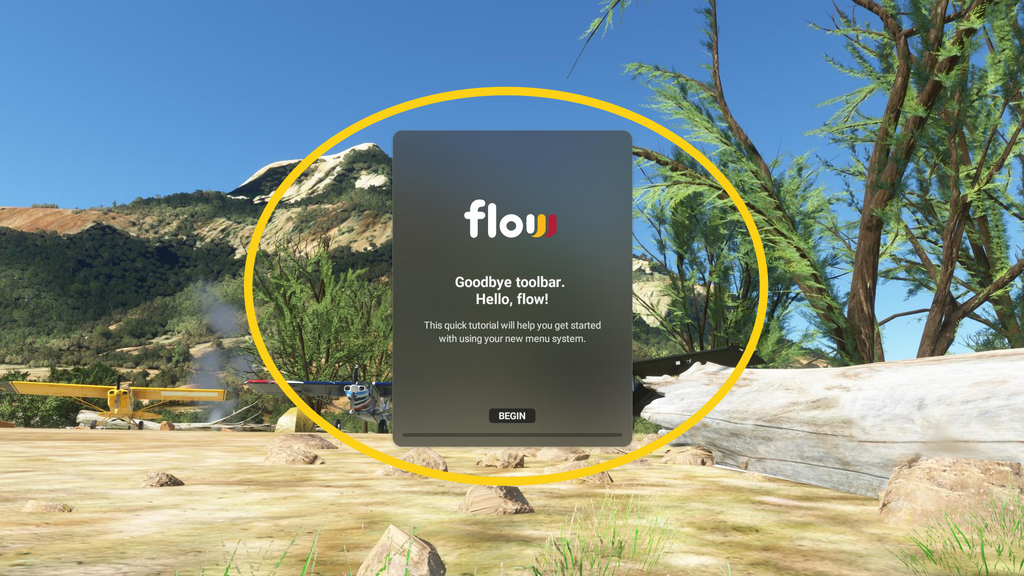
If the tutorial doesn’t start, see Starting Flow when the tutorial doesn’t appear.