
This article covers the following platforms
 MSFS 2024
 MSFS 2020
 ATS
ATS FSX
FSX Prepar3D
Juice Goose installs into the Community folder — the folder where MSFS loads add-ons from.
Install Juice Goose
-
Unzip the .zip you downloaded from our store.
-
Quit the simulator.
-
Move the add-on into the Community folder.
Microsoft Store version
%LOCALAPPDATA%\Packages\Microsoft.FlightSimulator_8wekyb3d8bbwe\LocalCache\Packages\CommunitySteam version
%APPDATA%\Microsoft Flight Simulator\Packages\CommunityIf you installed the simulator to a custom location, look for the Community folder there. For example, if you installed to
D:\Games\MSFS, the Community folder is here:D:\Games\MSFS\Community -
Launch the simulator.
-
From the MAIN MENU select World Map.
-
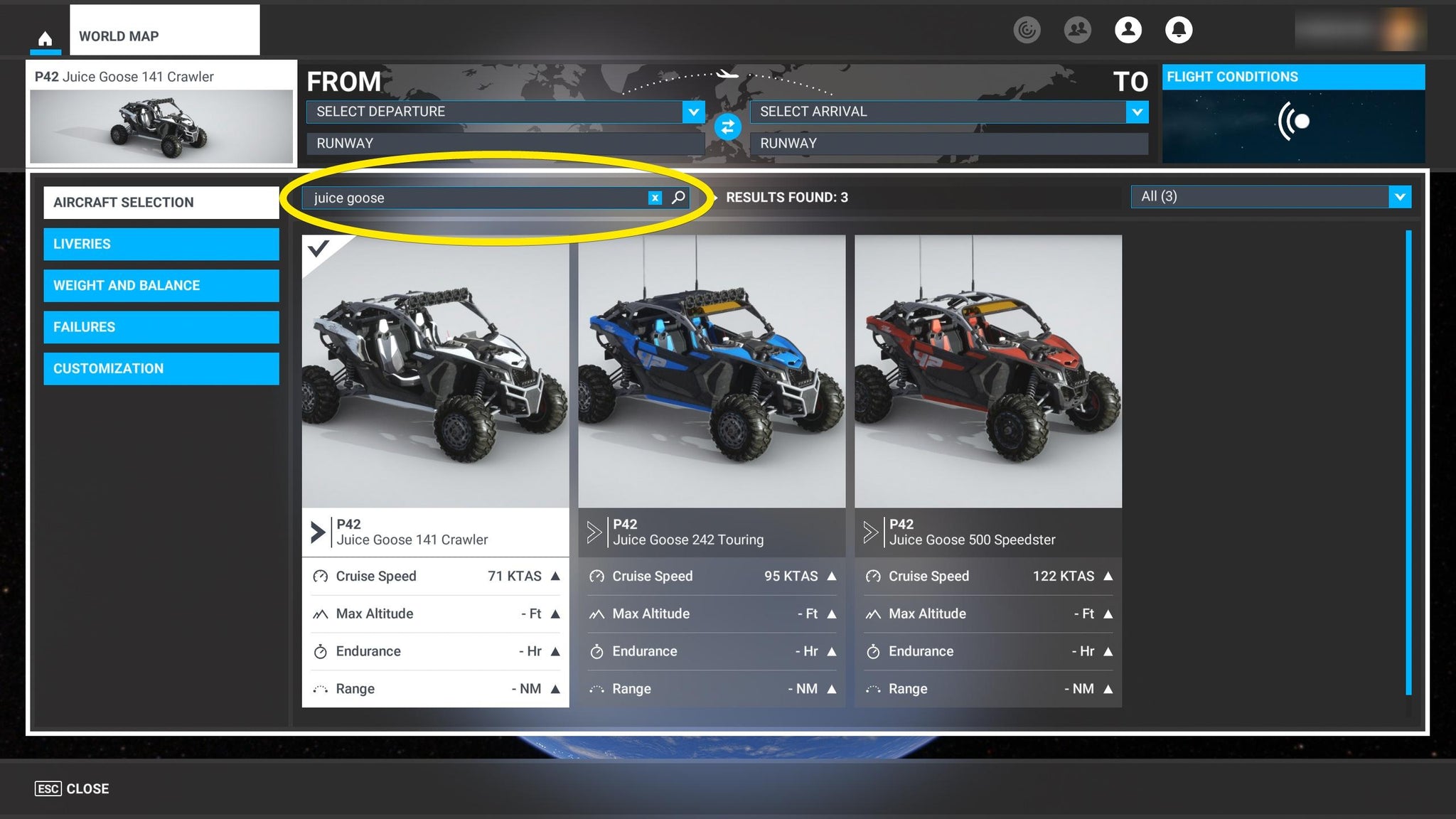
In the upper left corner, click the image of a vehicle.
-
Search for “Juice Goose” in the aircraft search bar.
Find the 42GB Goose Bowl scenery
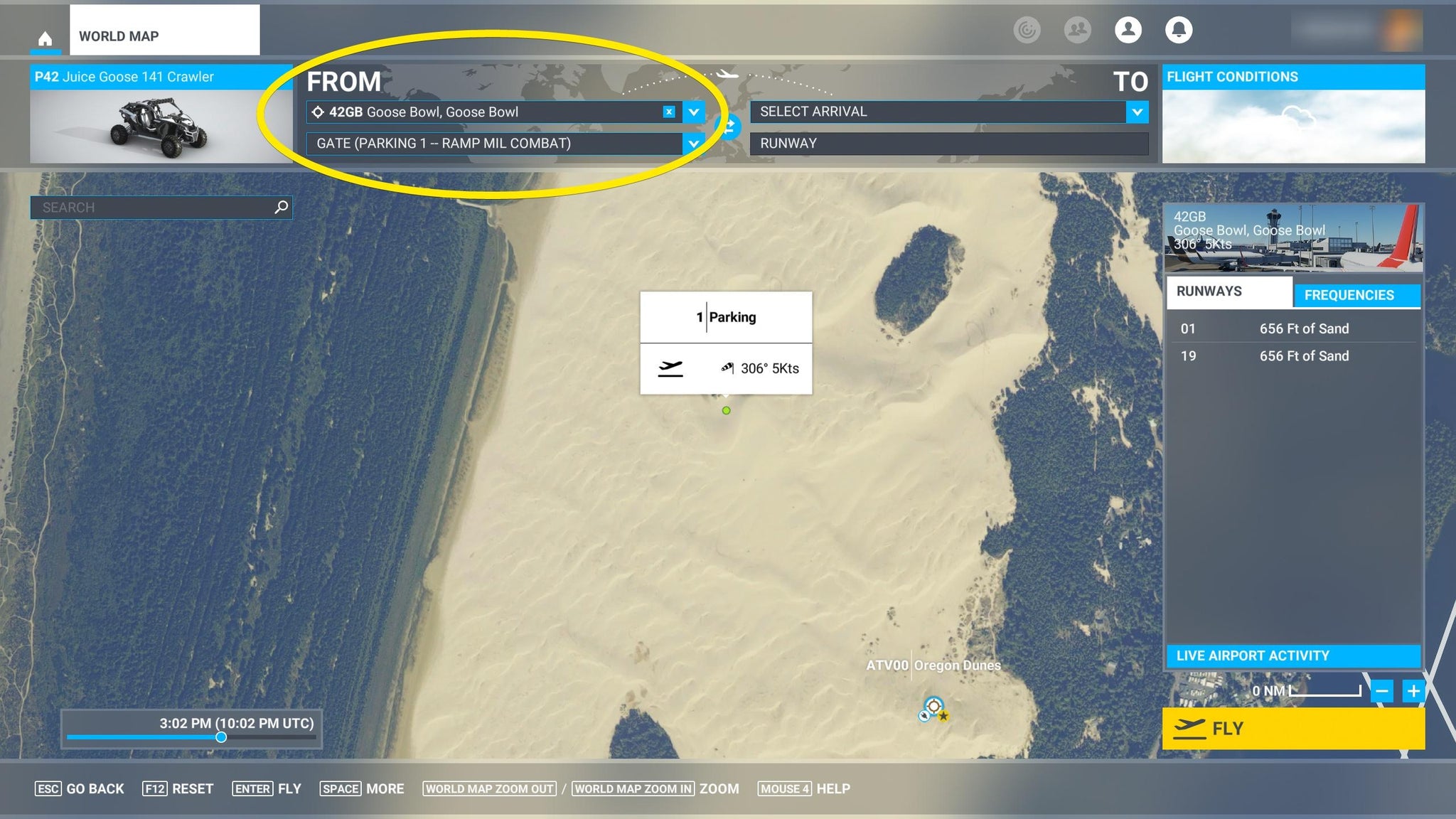
The 42GB Goose Bowl scenery installs automatically with Juice Goose.
- Launch the simulator.
- From the MAIN MENU select World Map.
- In the upper left corner, click the FROM field.
- Search for “42GB” in the location search bar.