

To transfer a Parallel 42 product you bought from another store to your Parallel 42 account, send Parallel 42 Support proof of purchase. To validate the purchase, Support needs a screenshot that shows the product, your name, and your email address — one screenshot for each product you want to transfer.
Once your request is received, allow up to 72 hours for it to be assessed and processed.
Capture proof of purchase
MSFS Marketplace
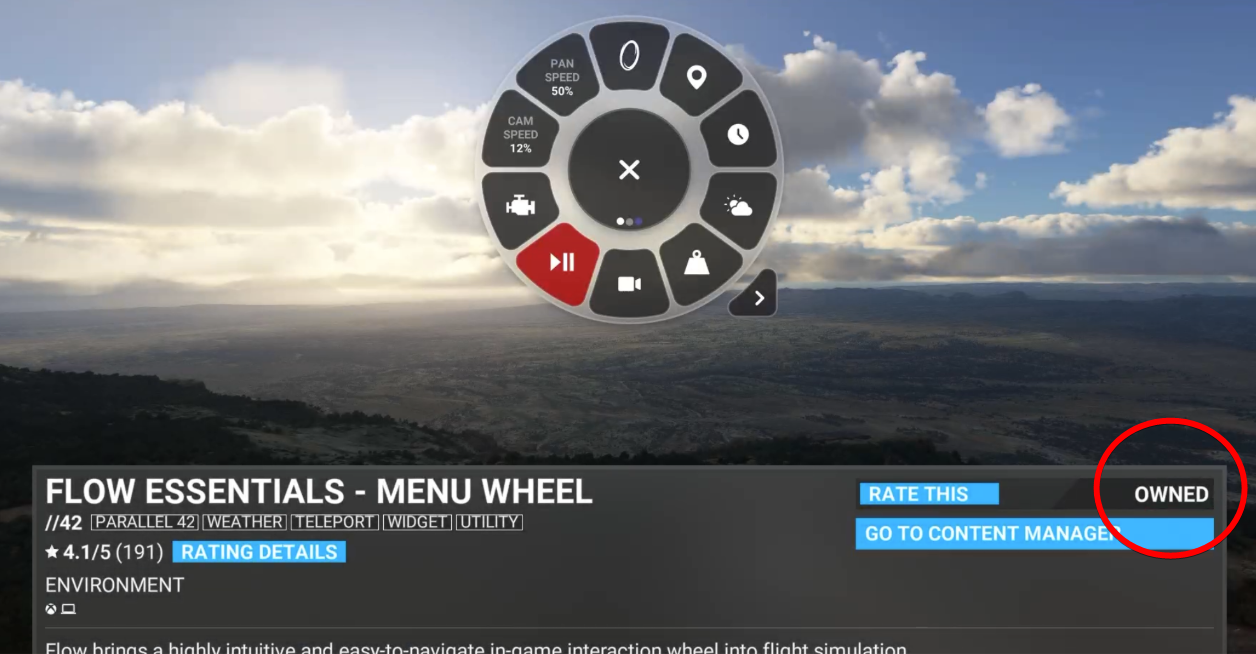
Open the Microsoft Flight Simulator Marketplace and find the product you want to transfer. Take a screenshot of that page. Make sure the word OWNED is visible next to the product and your profile name appears in the top right corner.
It should look like this:
Orbx
- Go to https://orbxdirect.com/.
- Log in using the login button at the top right of the page.
- Select the Account button at the top right of the page, next to the Log Out button.
- In your purchase list, find each //42 product you want to transfer.
- Click the product.
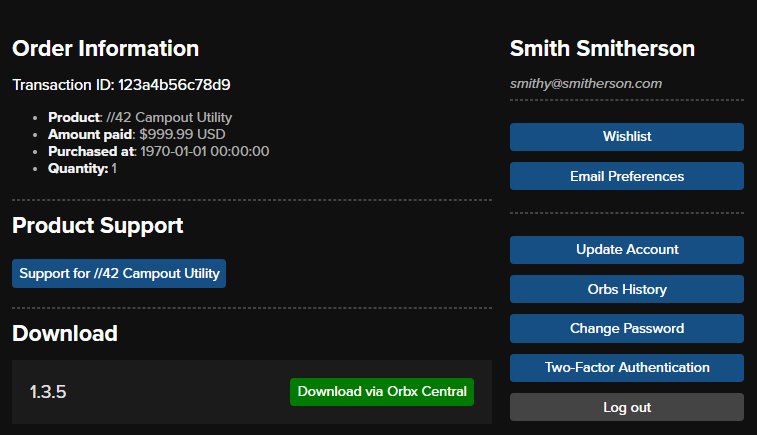
- Screenshot the page that opens, showing all the information — one screenshot per product.
It should look like this:
Contrail
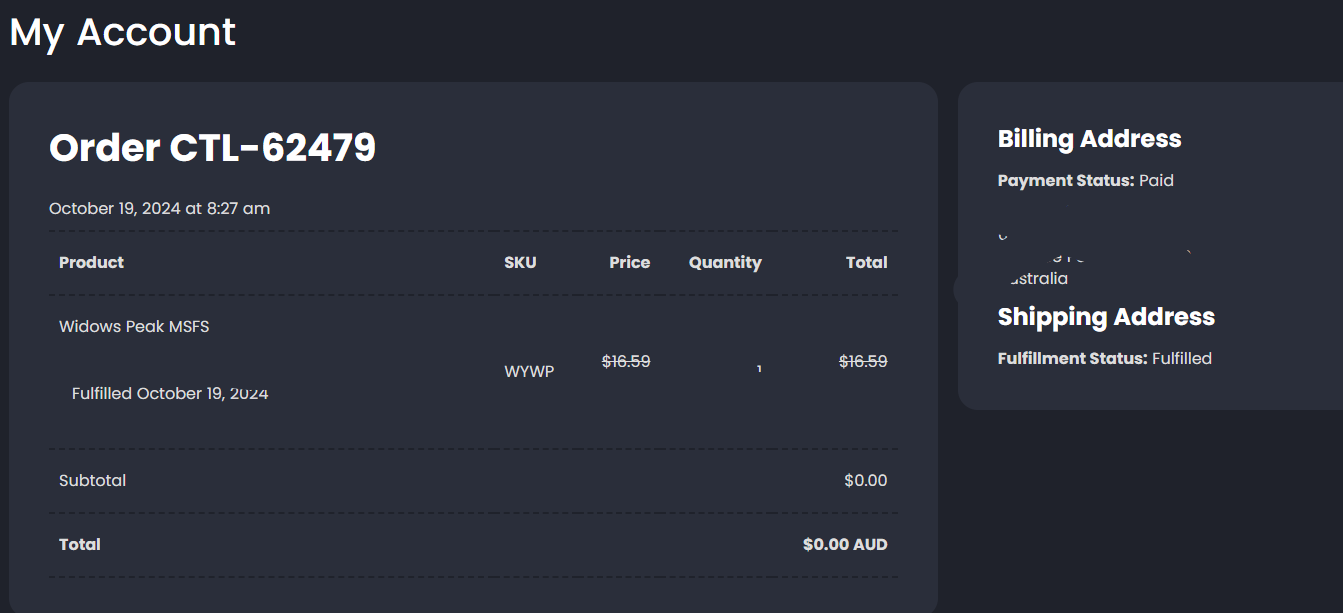
Screenshot your Contrail purchase details for each product, showing the product, your name, and your email address.
It should look like this:
Submit your proof of purchase
Submit a ticket and select Migrate Purchases to //42 Store. Attach one screenshot for each product.